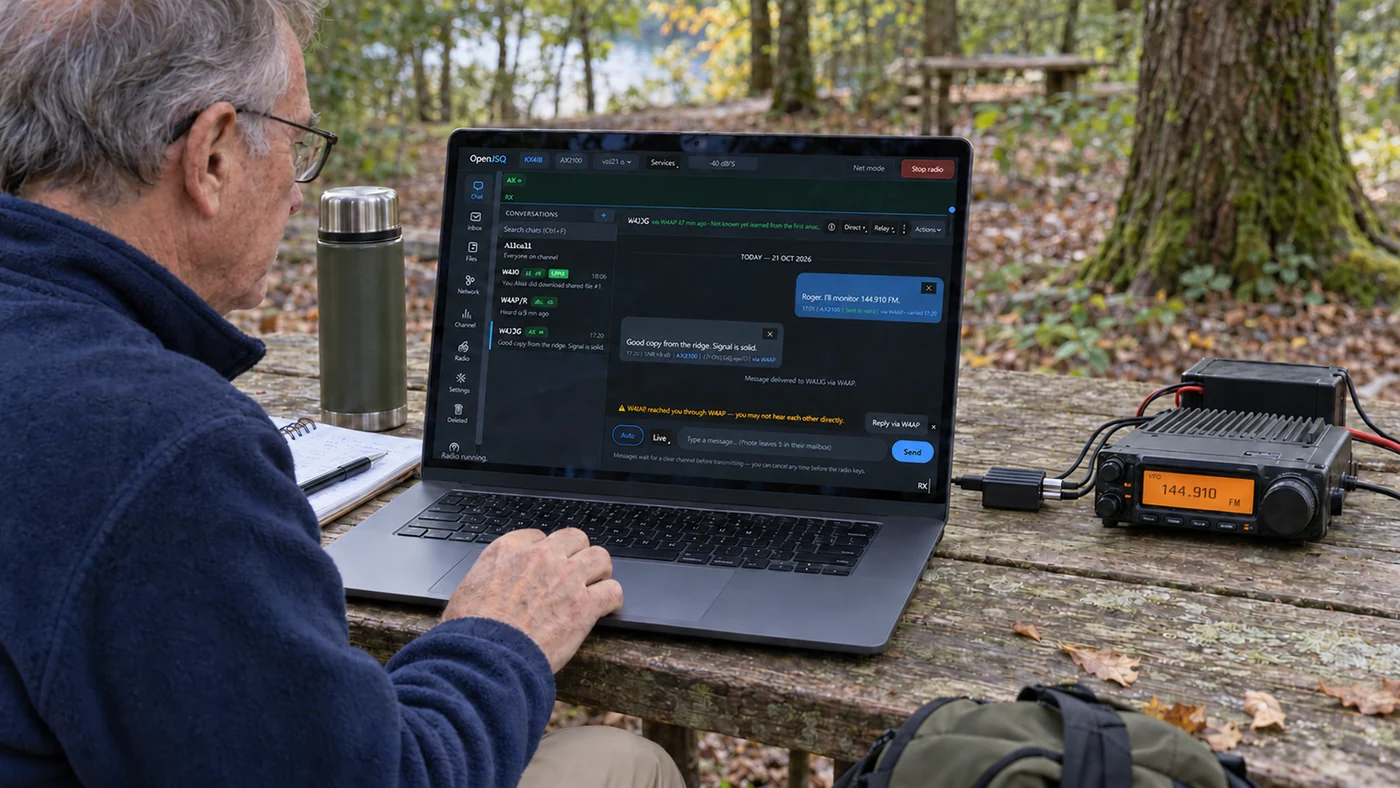
Make your first test a short, direct exchange with another OpenJSQ station. Start with familiar FSQ on HF or AX1200 on FM; explore other profiles after it works.
OpenJSQ checks www.openjsq.com for a newer version when it starts, at most once a day. The request reveals your IP address and app version, but sends no callsign or messages. We count these existing checks by app version to understand release adoption, without storing IP addresses or installation identifiers in our statistics database. It downloads and installs nothing. Turn the check off in Settings › About & storage › Updates. Privacy details →
01 · Prepare
Agree on the test.
You choose the frequency with your partner, within your privileges and local band plan. Agree the details with your partner before transmitting.
02 · Radio path
Start with one familiar signal.
HF · SSB audio
FSQ-3
Use USB or USB data, classic FSQ-3, and the conventional 1500 Hz audio position. Both stations should use the same center for this first test.
Set FSQ drive with Tune into a dummy load, keeping ALC barely moving. Stop tuning before the exchange.
These starting choices follow the OpenJSQ 1.0.9 operator guide. They are starting settings, not a guarantee of reception.
03 · Connect
Set up, then listen.
Your stationEnter the callsign licensed for this copy.
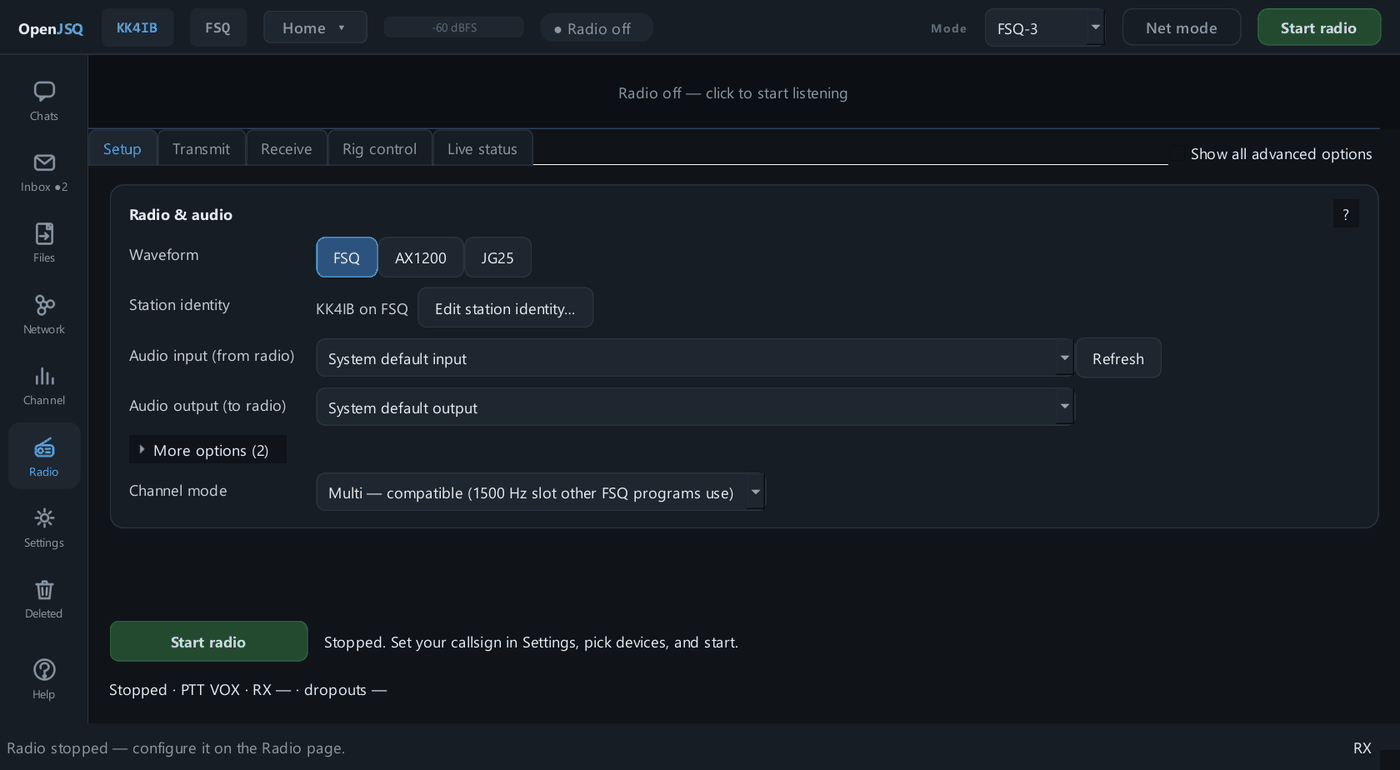
Radio connectionChoose FSQ audio, AX1200 audio, or AX1200 through a KISS TNC; configure the devices and keying.
Station styleA new install starts on Community: it answers questions, carries and repeats for other stations, and holds mail for stations that are off the air, within an airtime budget. Pick Careful if you want it only to answer, or Performance for larger allowances; Settings changes it later. The receiving partner must allow a signal-report reply.
Listen, then finishCheck incoming audio. On Radio, check the displayed station identity, transmit level, and Live status before sending.
Optional CAT control: connect through flrig or Hamlib rigctld for frequency and mode control, live radio readouts, and optional CAT PTT. Start the backend and connect it to your radio first, then choose it under Radio → Rig control. CAT setup guide →
See the Radio page and full setup guideExample controls after setup; no real audio device is selected in this image.
Try OpenJSQ for a shared chat, mail, and file workflow across its supported modems. Your existing software remains the way to reach peers using a waveform or service OpenJSQ does not support.
On a narrow screen, scroll the comparison sideways. With a keyboard, focus it and use the arrow keys.
What carries over, and what changes
Question
From JS8Call
From fldigi / FSQCall
My equipment?
An SSB radio and audio interface can be reused for FSQ, with OpenJSQ’s own device, keying, and level setup.
The FSQ radio/audio path carries over; configure it in OpenJSQ.
My contacts?
OpenJSQ does not decode JS8. Arrange a compatible station for a JSQ exchange.
Use classic FSQ at the conventional 1500-Hz audio center with fldigi/FSQCall for text and supported legacy actions. Fast profiles need Fast decoding support; full JSQ services require a peer application that implements them.
Timing?
JS8Call uses aligned transmission windows and offers clock-drift tools. OpenJSQ’s supported modems acquire each transmission without those intervals.
FSQ keeps its arrival-based reception; no synchronized transmission intervals are added.
Delivery?
Check the evidence for each OpenJSQ service: Sent, acknowledged delivery, and mail custody mean different things.
FSQ chat remains best effort. Whole-file verification and mailbox custody are separate services between capable stations.
Find what you’re seeing. Get back to the conversation.
Open a check for the next thing to try.
Receive. Connect. Reply.
01ReceptionNothing appears in Channel?
Confirm the partner is transmitting on your agreed frequency and radio mode. Check squelch, input device, receive level, and the FSQ center or AX1200 link.
02Audio connectionAX1200 shows no audio devices?
In Radio → AX1200 → Radio link, select Built-in audio for an audio interface. An external KISS TNC handles the audio itself.
03TransmissionThe radio receives but does not transmit?
Check the callsign licence, keying, audio output, and Radio → Live status.
04Automatic repliesThe greeting arrives but no signal report returns?
Check the exact recipient name and the partner’s automatic-answer policy. On AX1200, check that you are using Dedicated OpenJSQ channel, not APRS coexistence.
05Receive modesTraffic is on another modem?
Check that the receiver has the sender’s waveform and speed enabled. Audio multi-receive does not require matching transmit selections. Manual replies use the selected transmit waveform; a KISS-only link receives AX1200 only.